User Guide
Loading the Plugin

Check "MisowTodoList" and restart the engine.
How to Launch

Click the icon to launch.
How to Use
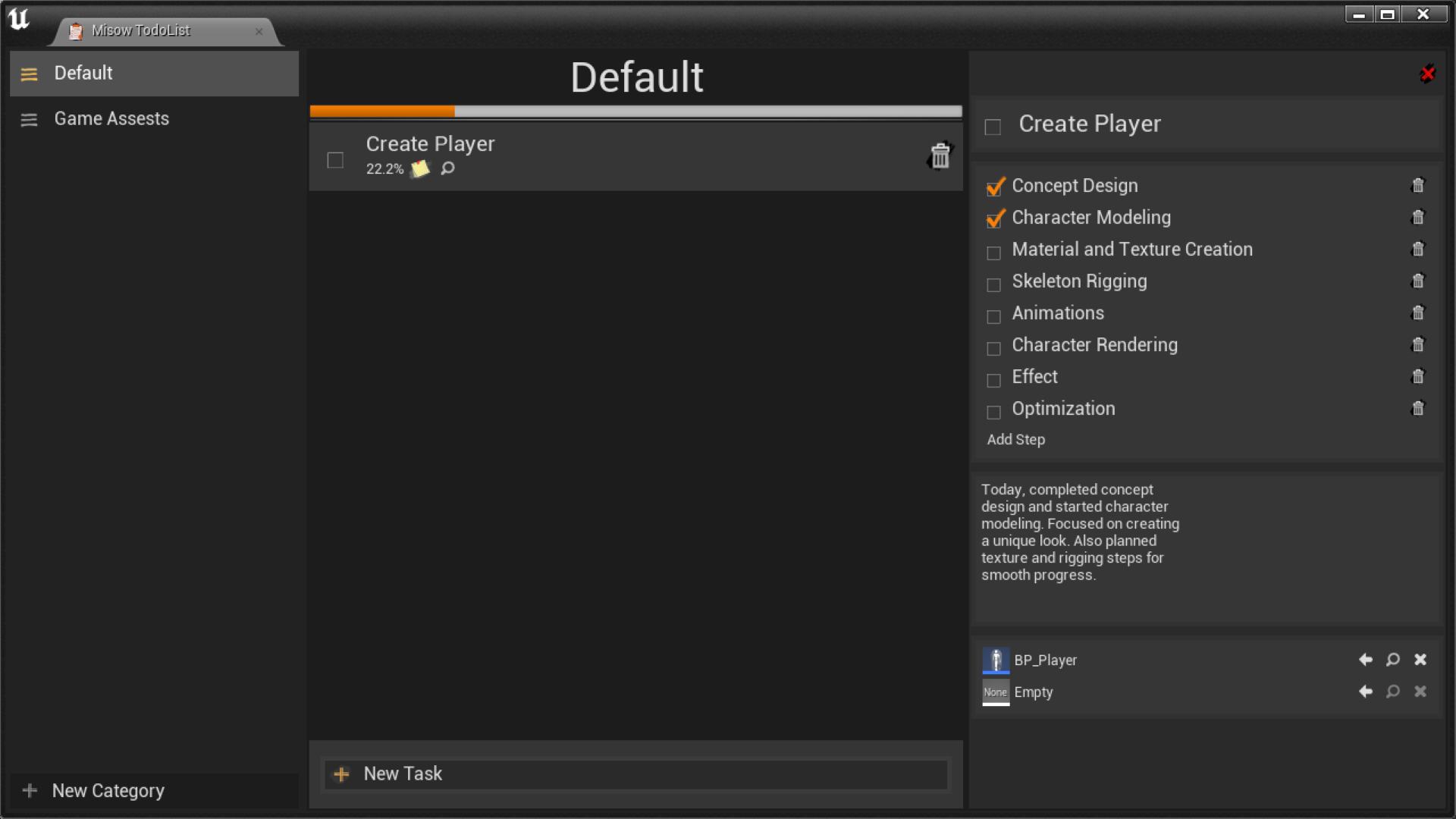
Categories
New
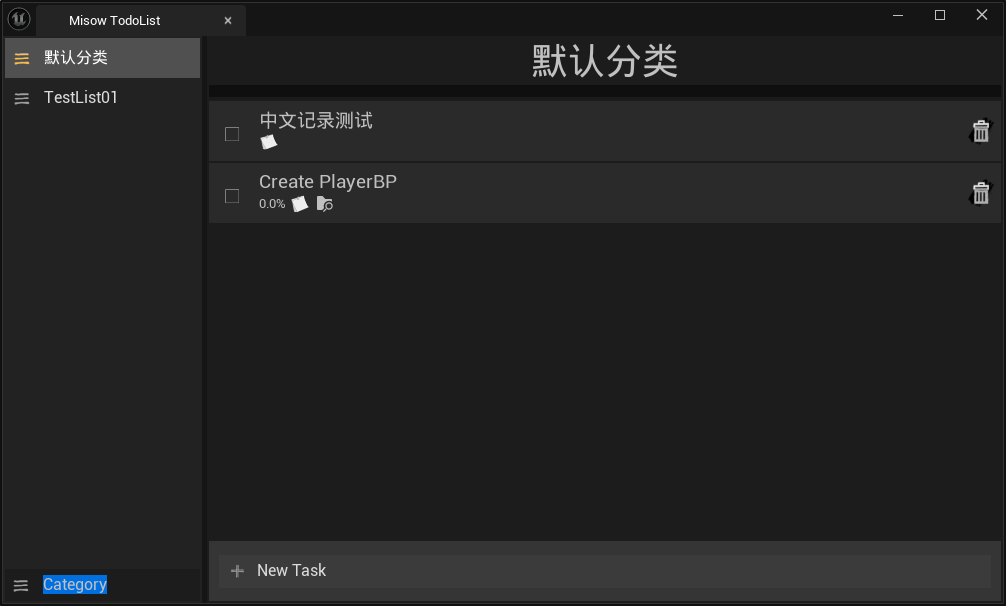
Click the [+ New Category] button, enter the category name, and press Enter to complete the addition.
Edit

After selecting a category, click the category title to edit the category name.
Note: Default categories cannot be edited.
Delete

Click the delete button to delete the category.
Note: Default categories cannot be deleted.
Tasks
New
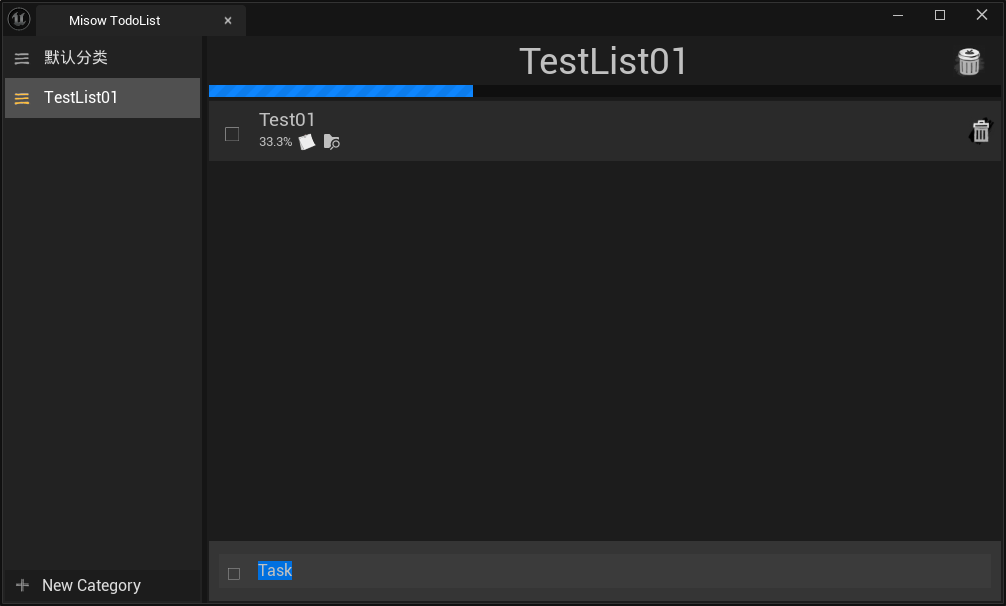
Click the [+ New Task] button, enter the task name, and press Enter to complete the addition.
Edit

After selecting a task, click the task title to edit the task name.
Click the checkbox in front of the task to complete the current task.
Sub - Steps

Click the [+ Sub Steps] button, enter the sub - step name, and press Enter to complete the addition.
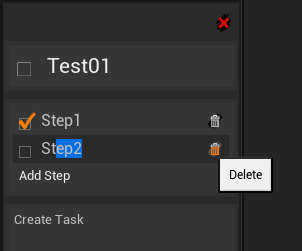
Click on an existing step to edit the step name.
Click the delete button to delete a sub - step.
Click the checkbox to complete a sub - step.
Log

Click the log box and enter the log content. The log will be automatically saved when the focus leaves.
Associate Asset Files

Use the asset manager to select a file. Click "Associate" to associate the file. Click the delete button to remove the association. Click the "Browse" button to open the associated file.
Delete
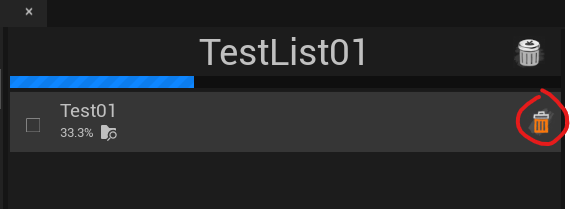
Click the delete button to delete the task.
Backup and Troubleshooting
The logs are located in the "project/Saved/MisowTodoList" folder. You can use synchronization software or manually back up.
When the engine crashes, shuts down abnormally, or there is a hard drive failure, it may cause incomplete logs or startup failures. In this case, you can use the backed - up data to replace or manually modify the data file for repair.